STEP 01
Download the application
Select the Download for Windows button at the top of this page. Save the file if your browser asks.
 Company website
Get connected with Fringe Technologies using our dedicated remote support application. No account required.
Follow these steps on the computer receiving support.
The Windows warning shown below is an actual capture from the current unsigned download. The wording may change as Microsoft updates Windows.
Select the Download for Windows button at the top of this page. Save the file if your browser asks.
The first warning may show only More info. Click More info to reveal the decision buttons.
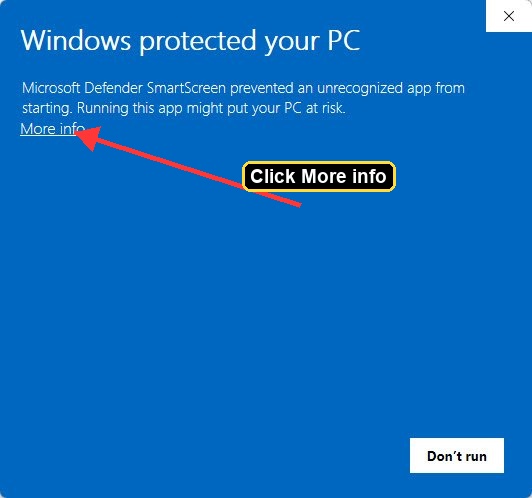
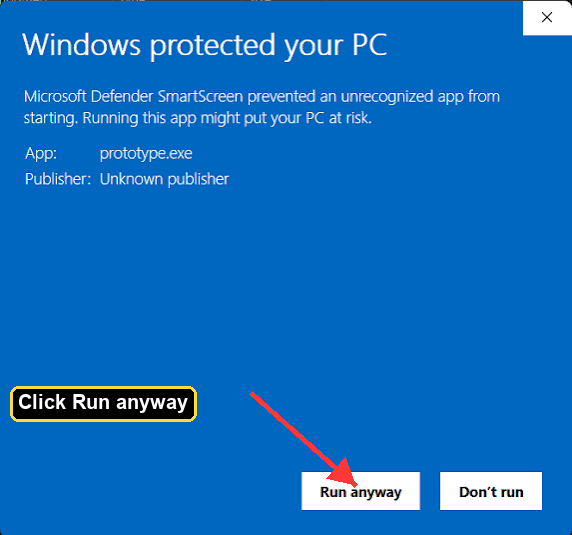
After the details are expanded, confirm the app name and publisher state. Choose Run anyway only when you expected this Fringe download.
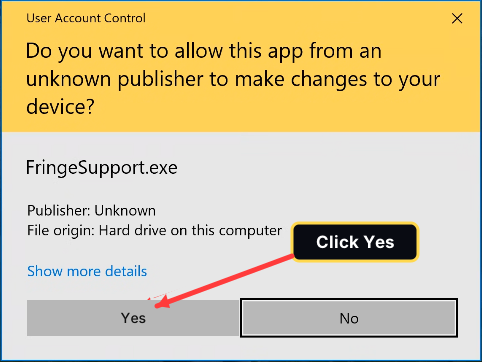
Windows then asks whether Fringe Support can make changes on this PC. That permission installs the support helper for this session. Select Yes only when you expected this support session. If you select No, the support code does not appear.
Fringe Support creates a short-lived support code for this computer. Read the code to your support technician. If it expires before they connect, the app shows a new code. Nothing is shared until you approve the request.
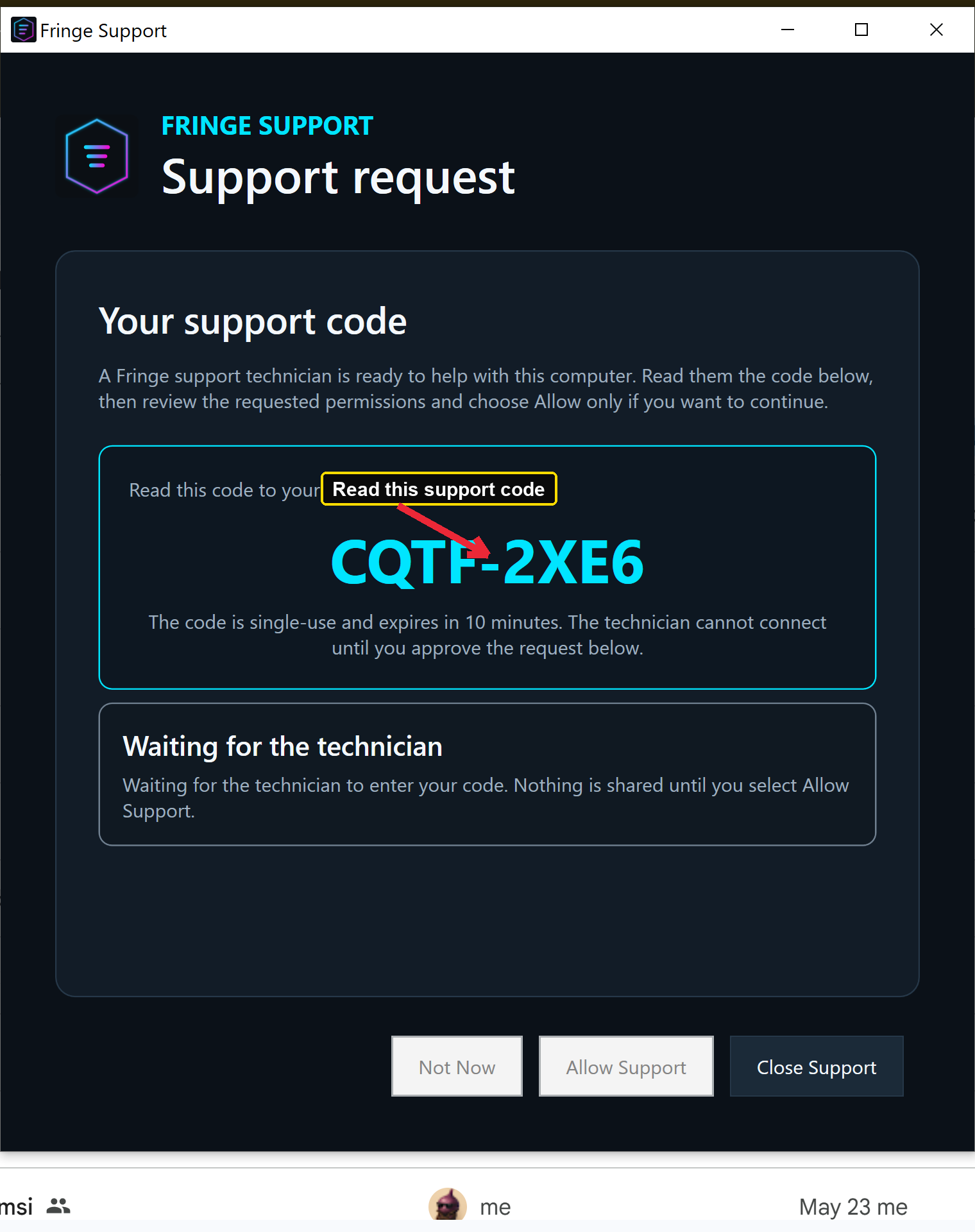
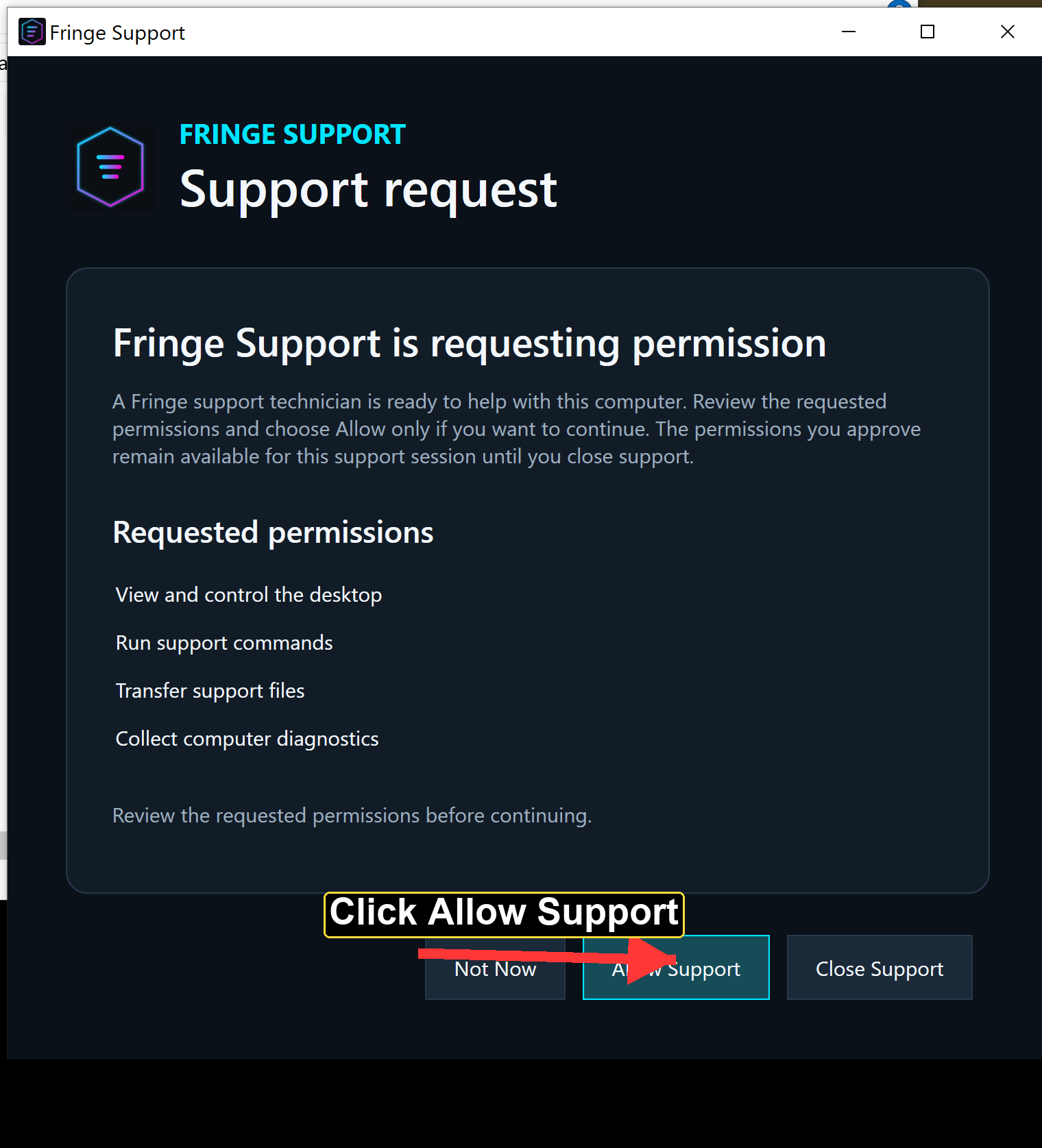
After the technician enters your code, review every requested permission in Fringe Support. Select Allow Support only when you started this session and want help to continue.
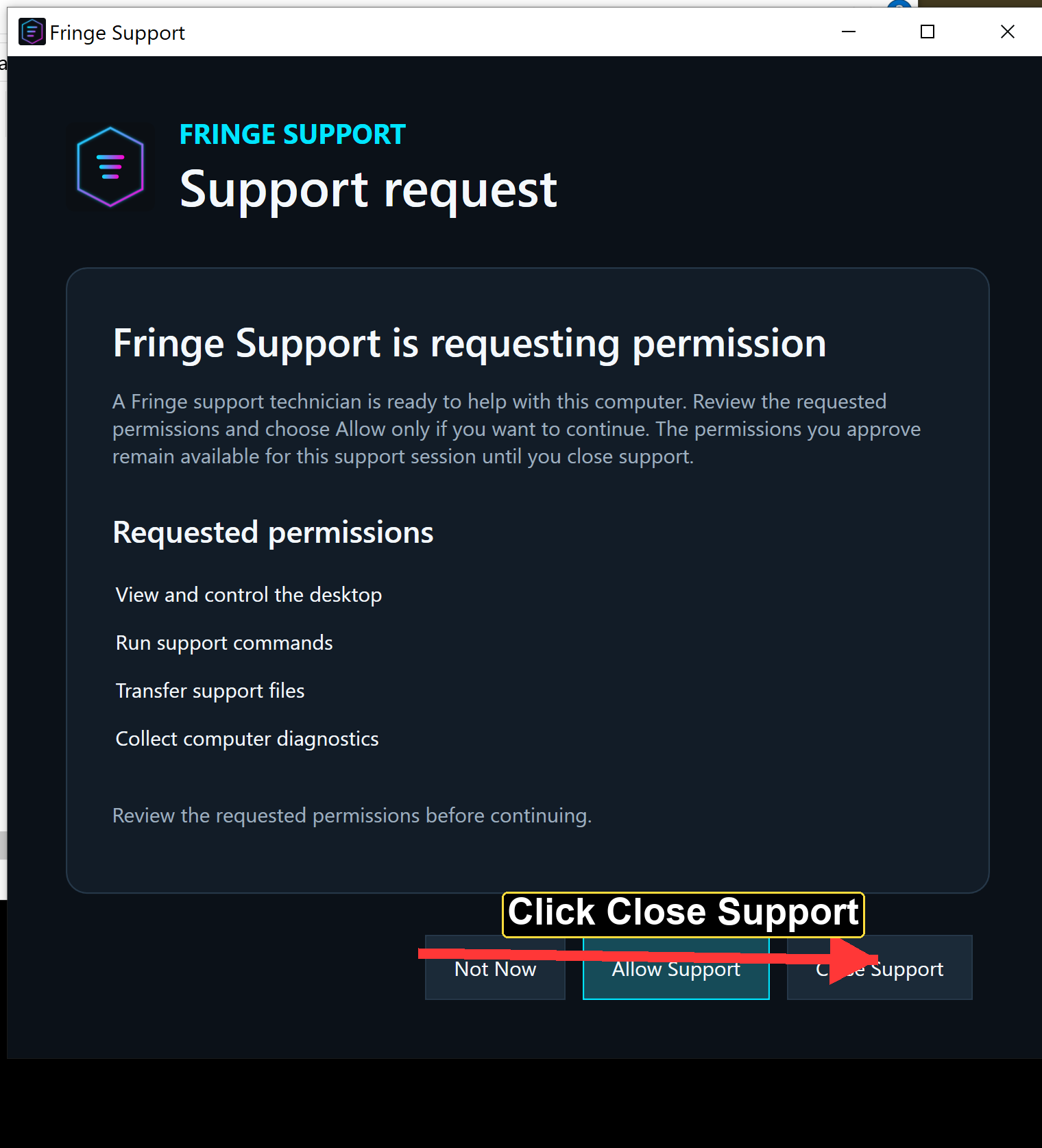
When the work is complete, select Close Support. This ends the attended support session from the customer application.
Only start a session you requested. Review the requested permissions, and end the session when you are finished.
Download and run the application on the Windows computer that needs remote assistance. You can read these instructions on your phone, but the Windows executable must run on the computer being supported.
Do not bypass a warning if you are unsure about the file. Confirm the release through a trusted Fringe support contact before continuing.
Use the end-session control in the support application. Confirm that the session has ended before closing the app.
Yes. After you open Fringe Support, Windows shows a permission prompt. Select Yes so the support helper can be installed for this session. Select No and the support code will not appear. Windows may also show a security warning because this development build is not code-signed yet. Only continue when you recognize the Fringe support download and expected this session.
SHA-256 checksum of the file currently hosted here. Compare it with the checksum provided through a trusted release channel.
14b6a959ddfce51dde8f2c3ce98500608419d5730fd985b72705a88c988fec8c